Appearance
The home feed
What the person sees. The home tab of the app: the timeline of posts, reels, ads and Explore stories, and the bottom bar that leads to every other tab. It is the screen a stored session starts on, so almost every other area's scenarios begin here.
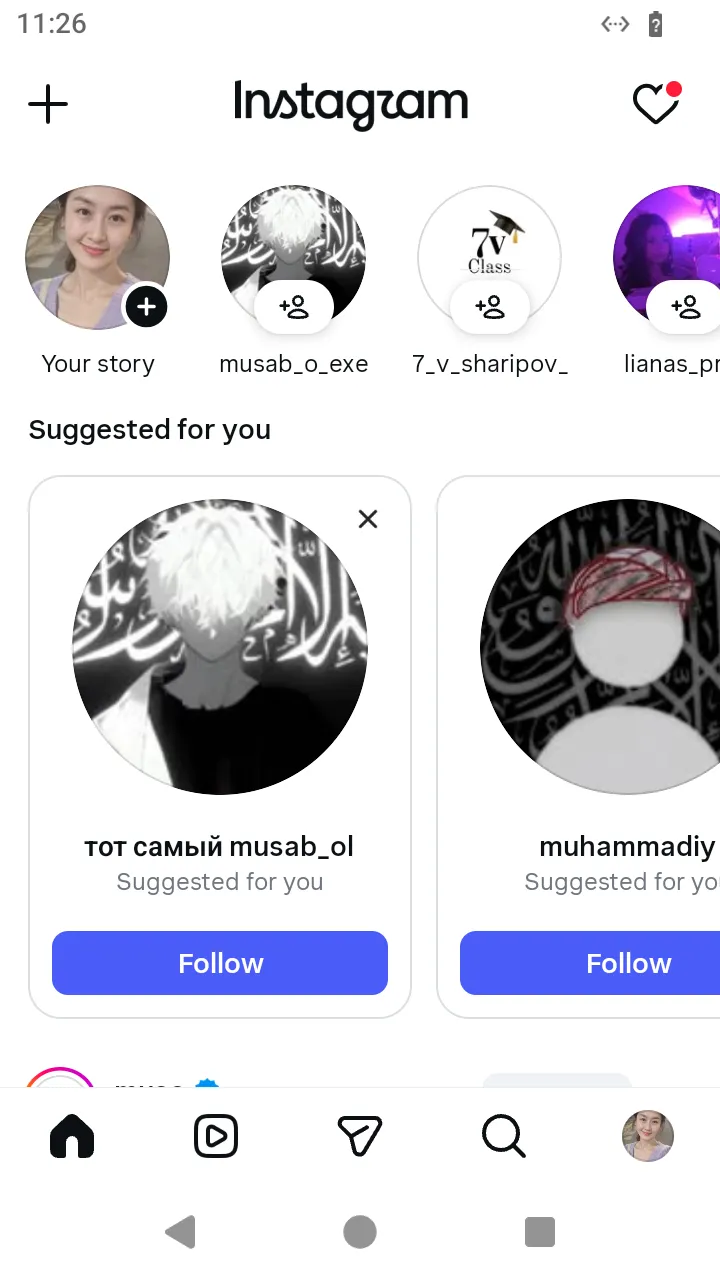 The home feed right after a password login:
 items holds the stories tray and the posts the page drew.
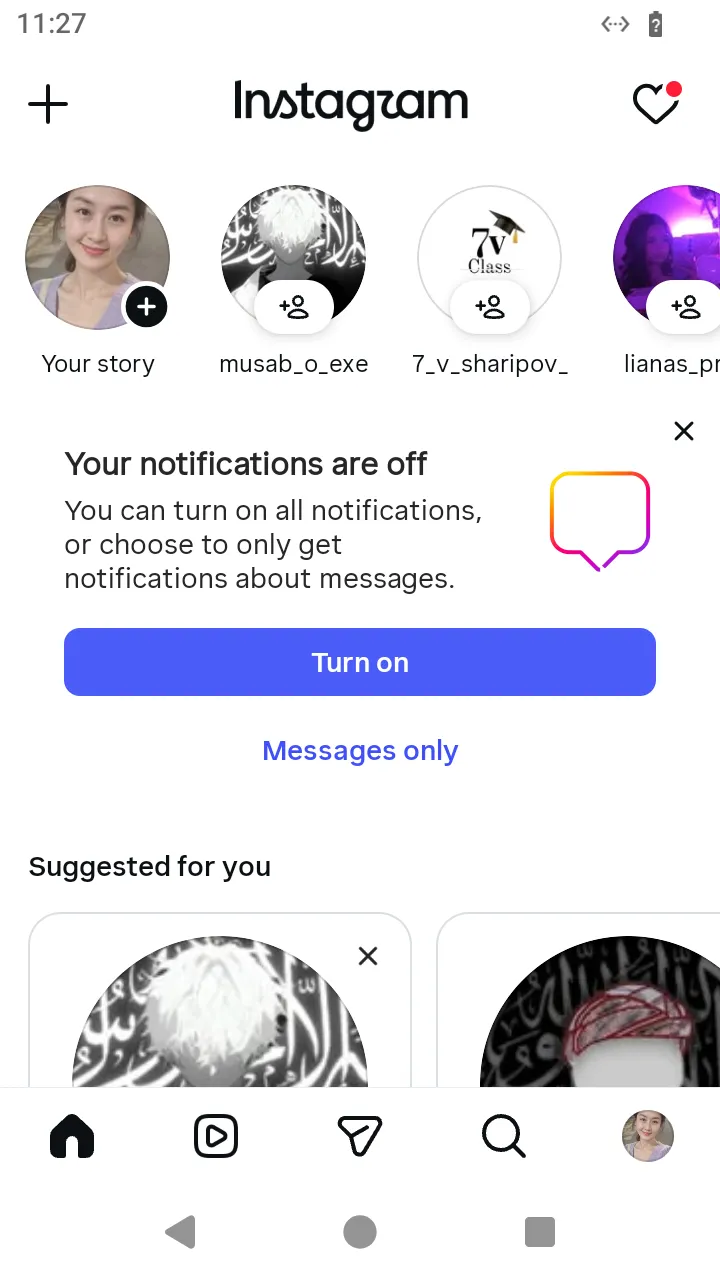 A card the app adds to the feed ("Your notifications are off"); the Simulator offers no action for it.
What you do. The screen is FeedTimelineScreen. This page lists everything a person can do on it, each with a program that runs it: read a page, scroll to the next, swipe through the timeline, like a post, open a post or a reel, switch tabs, open the Following filter, like a carousel child.
Every example starts from session.json, the session Your first program saved, and names the screen it expects (screen: FeedTimelineScreen). The examples show the success path: errors are answered as in Errors, and challenges by your otherwise constant (Challenges: answer them once with otherwise).
The examples answer no errors, so that each one stays on its path. Every action can fail with typed errors; answer them inside the program with Effect.catchTag, as the quick start does (see Errors).
ts
import { AndroidIgpapi, FeedTimelinePostItem, FeedTimelineReelItem, FeedTimelineScreen } from '@igpapi/android';
import { Effect } from 'effect';
import { readFile } from 'node:fs/promises';

// A checkpoint read back from your storage (see "Keep a session").
const saved = JSON.parse(await readFile('session.json', 'utf8'));
The matrix
| # | The person... | Starts on | Actions | Result |
|---|---|---|---|---|
| 1 | Looks at the first page of the timeline | the feed | items | The page's posts, reels, ads, Explore stories and the end-of-feed marker |
| 2 | Scrolls down to the next page | the feed | nextPage() | A new handle of the next page, or undefined at the end |
| 3 | Swipes through the timeline one item at a time | the feed | current, swipeToNext() | The item in front; past the loaded items a swipe loads the next page |
| 4 | Likes a post from the timeline | the feed | the post item's like() | The like's answers under raw |
| 5 | Opens a post full-screen | the feed | the post item's open() | The post screen, which back() closes |
| 6 | Opens a reel of the timeline | the feed | the reel item's open({}) | The Reels viewer on that reel |
| 7 | Taps the Reels tab | the feed | openReelsTab() | The Reels viewer (see reels) |
| 8 | Taps the Direct, Search and profile tabs | the feed | openDirectTab(), openSearchTab(), openMyProfileTab() | The inbox, the Explore tab, your own profile |
| 9 | Opens the Following filter of the home tab | the feed | openFollowing() | The Following feed (FeedTimelineFollowingScreen), which back() closes |
| 10 | Likes a carousel child, then takes the like back | the Following feed or the feed | the post item's swipeToSlide(index), likeCarouselChild(), unlikeCarouselChild() | The like's and the unlike's answers |
The rest of what the timeline shows has no action of its own: ads, Explore stories, the "You're all caught up" line, the Threads block and the suggested-reels block are items you can read (items, .data) and nothing more.
The server's list is open: an entry of a kind the Simulator does not model is an unknown item (FeedTimelineUnknown) whose data.item carries the kind's key and the raw entry, so the feed still opens and a caller can see what arrived.
The post screen that scenario 5 opens, and the post's and the reel's like, repost and comments, belong to the likes, reposts and comments area and are documented with it; the Reels viewer's own scenarios are in reels.
The scenarios
1. Look at the first page
The person sees the first page of the timeline, as the app drew it. The action: items holds an item handle for each entry, told apart by id (FeedTimelinePost, FeedTimelineReel, FeedTimelineAd, ...).
ts
// Read the first page of the home timeline.
const kinds = await AndroidIgpapi.launch({
  checkpoint: saved,
  screen: FeedTimelineScreen,
  main: feed =>
    Effect.gen(function* () {
      // `items` is the page the app drew: posts, reels, ads, Explore stories and the end marker.
      return feed.items.map(item => item.id);
    }),
});
console.log(kinds);
2. Scroll to the next page
The person scrolls down to the end of the page. The action: nextPage() sends the request the app sends then and answers a new handle for the page it loaded. The handle you called it on is a snapshot and keeps its own page.
ts
// Scroll down: the page after the one in front.
const secondPageSize = await AndroidIgpapi.launch({
  checkpoint: saved,
  screen: FeedTimelineScreen,
  main: feed =>
    Effect.gen(function* () {
      // `nextPage()` is a new handle of the next page; `undefined` at the end of the feed.
      const next = yield* feed.nextPage();
      return next?.items.length ?? 0;
    }),
});
console.log(secondPageSize);
3. Swipe through the timeline
The person swipes and the app keeps one post in front, so the timeline is a swipeable feed. The action: current is the item in front, and swipeToNext() answers the item that comes in front, loading the next page itself when the loaded items run out.
ts
// Swipe through the feed one item at a time, as the app does.
const seen = await AndroidIgpapi.launch({
  checkpoint: saved,
  screen: FeedTimelineScreen,
  main: feed =>
    Effect.gen(function* () {
      const keys: string[] = [];
      // `current` is the item in front; every swipe returns the item that comes in front.
      let item = feed.current;
      for (let swipes = 0; item !== undefined && swipes < 5; swipes += 1) {
        keys.push(item.key);
        item = yield* feed.swipeToNext();
      }
      return keys;
    }),
});
console.log(seen);
4. Like a post from the timeline
The person taps the heart on a post of the timeline. The action: the like of a post of the timeline. Instagram learns where in the feed you liked it, as from the app.
ts
// Like the first post of the page from the timeline.
const liked = await AndroidIgpapi.launch({
  checkpoint: saved,
  screen: FeedTimelineScreen,
  main: feed =>
    Effect.gen(function* () {
      const post = feed.items.find(item => FeedTimelinePostItem.is(item));
      if (post === undefined || !FeedTimelinePostItem.is(post)) return undefined;
      // Instagram learns where in the feed you liked it, as from the app.
      const answer = yield* post.like();
      return answer.raw;
    }),
});
console.log(liked);
5. Open a post
The person taps a post and the post opens full-screen. The action: open() is the one verb of every item that opens something. A post opens the post screen; back() closes it and the timeline is in front again.
ts
// Open a post full-screen.
const mediaId = await AndroidIgpapi.launch({
  checkpoint: saved,
  screen: FeedTimelineScreen,
  main: feed =>
    Effect.gen(function* () {
      const item = feed.current;
      if (item === undefined || !FeedTimelinePostItem.is(item)) return undefined;
      // `open()` is the verb of every item that opens; a post leads to the post screen.
      const post = yield* item.open();
      const shown = post.data.mediaId;
      yield* post.back();
      return shown;
    }),
});
console.log(mediaId);
6. Open a reel
The person taps a reel of the timeline. The action: a reel opens the Reels viewer on that reel. open takes an options object; {} means no options.
ts
// Open a reel of the timeline in the Reels viewer.
const reelKey = await AndroidIgpapi.launch({
  checkpoint: saved,
  screen: FeedTimelineScreen,
  main: feed =>
    Effect.gen(function* () {
      const item = feed.items.find(candidate => FeedTimelineReelItem.is(candidate));
      if (item === undefined || !FeedTimelineReelItem.is(item)) return undefined;
      // `open` takes an options object; `{}` means no options.
      const viewer = yield* item.open({});
      return viewer.current?.key;
    }),
});
console.log(reelKey);
7. Tap the Reels tab
The person taps the Reels tab of the bottom bar. The action: a tab edge always lands on the tab's root, so the answer is the viewer itself and needs no guard; a comments sheet left open over it is closed, as the app does on a tap of the selected tab.
ts
// Switch to the Reels tab of the bottom bar.
const reels = await AndroidIgpapi.launch({
  checkpoint: saved,
  screen: FeedTimelineScreen,
  main: feed =>
    Effect.gen(function* () {
      // A tab edge lands on the tab's root: the viewer.
      const tab = yield* feed.openReelsTab();
      return tab.id;
    }),
});
console.log(reels);
8. Switch tabs
The person taps the other tabs of the bottom bar. The action: each tab is an edge of the feed. Each lands on the tab's root, whatever the tab kept above it: the inbox, the Explore tab and your own profile.
ts
// Switch to the Direct tab, then to the Search tab, then to your own profile.
const tabs = await AndroidIgpapi.launch({
  checkpoint: saved,
  screen: FeedTimelineScreen,
  main: feed =>
    Effect.gen(function* () {
      const direct = yield* feed.openDirectTab();
      const search = yield* feed.openSearchTab();
      const profile = yield* feed.openMyProfileTab();
      return [direct.id, search.id, profile.id];
    }),
});
console.log(tabs);
9. Open the Following filter
The person opens the title dropdown of the home tab and picks Following, which filters the timeline to the accounts they follow. The action: the app pushes a screen over the feed, so openFollowing() answers FeedTimelineFollowingScreen: the same posts, reels and units as the feed, walked, paged and acted on the same way, with its own pages (nextPage(), swipeToNext()) and back() to the feed. The positions the likes report count the entries of the whole filter across its pages.
ts
// Open the Following filter of the home tab: the posts of the accounts you follow.
const following = await AndroidIgpapi.launch({
checkpoint: saved,
screen: FeedTimelineScreen,
main: feed =>
Effect.gen(function* () {
// The filter is a screen pushed over the feed; `back()` returns to the feed.
const filtered = yield* feed.openFollowing();
return filtered.items.map(item => item.id);
}),
});
console.log(following);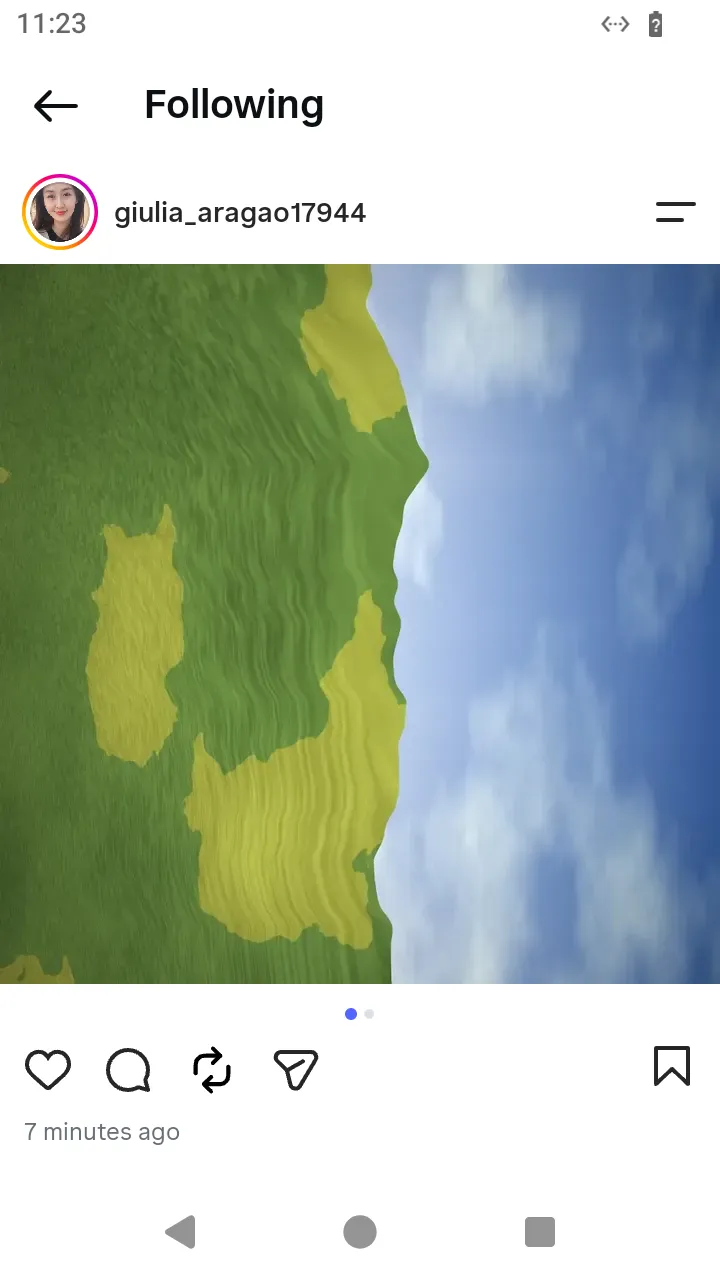 The Following filter: the posts of accounts you follow.
10. Like a carousel child, and take the like back
The person swipes a carousel to a slide and likes it. A carousel is one post with several slides, and the app likes the slide in front, not the post. swipeToSlide(index) is the swipe to a slide by its zero-based index: nothing is sent, and the answer is the post with that slide in front, the item to continue from. likeCarouselChild() likes the slide in front (the first when they never swiped), and unlikeCarouselChild() takes the like back. A post that is no carousel, or holds no such slide, fails with the typed CarouselSlideNotFoundError before any request. Carousel posts owns the rules of slides.
ts
// Like the second child of a carousel of the Following filter, then take the like back.
const carouselMediaId = await AndroidIgpapi.launch({
  checkpoint: saved,
  screen: FeedTimelineScreen,
  main: feed =>
    Effect.gen(function* () {
      const filtered = yield* feed.openFollowing();
      const carousel = filtered.items.find(
        item => FeedTimelinePostItem.is(item) && (item.data.media.carousel_media?.length ?? 0) > 1,
      );
      if (carousel === undefined || !FeedTimelinePostItem.is(carousel)) return undefined;
      // The person swipes to the second slide; the answer is the post with that slide in front.
      const swiped = yield* carousel.swipeToSlide(1);
      yield* swiped.likeCarouselChild();
      yield* swiped.unlikeCarouselChild();
      return carousel.data.media.id;
    }),
});
console.log(carouselMediaId);