Appearance
A story
What the person sees. The STORY mode of the create flow: the creation camera, its gallery, the story editors and the share sheet.
What you do. openCreation('story') answers the creation camera (camera), whose thumbnail opens the camera's gallery; a pick opens PostingStoryPhotoEditorScreen or PostingStoryVideoEditorScreen (the editors). The photo editor's "Your story" button, shareToYourStory(options?), publishes at once; openShareSheet(options?) opens PostingStoryShareSheetScreen, whose share() opens PostingStoryAlsoShareToScreen — its entry publishes and its done() closes the whole flow and asks for the post-share banner.
A publication answers the story the server created: { mediaId, code? } — the story's media id, and its short code when Instagram's configure answer carries it; an answer that carries no code gives a result with the field absent.
The sticker tray's Music sticker adds a song; the browser, the search and the pick are the music screens (music). A story with a song uploads no audio: Instagram turns the photo into a video of the song's length.
A pick can also report what a phone's gallery would say of the file: takenAt (the "taken" time, in epoch seconds) and folder (the album, such as Pictures). Both are optional: leave them out and the album defaults to Pictures for a photo and Movies for a video. Mentions are added to a published story with Mention users in a story. The gallery's pickVideo() answers either editor — the story video's or the reel's; the scenarios below are the story's.
Each example assumes the posting setup; errors and challenges are answered as the Publishing page says.
The scenarios
1. Publish a story photo with "Your story"
Starts on: the feed.
openCreation('story') answers the creation camera in the story mode, and its thumbnail opens the camera's gallery, which lists photos there. pickPhoto(photo, where?) takes the file's bytes and, beside them, what the device's media store answers about the picture — takenAt (epoch seconds) and its folder — which a story reports to the server; the story editor opens. Its "Your story" button, shareToYourStory(options?), publishes at once: the caption's check, the upload, the flow closed and the configure, and it answers the story the server created.
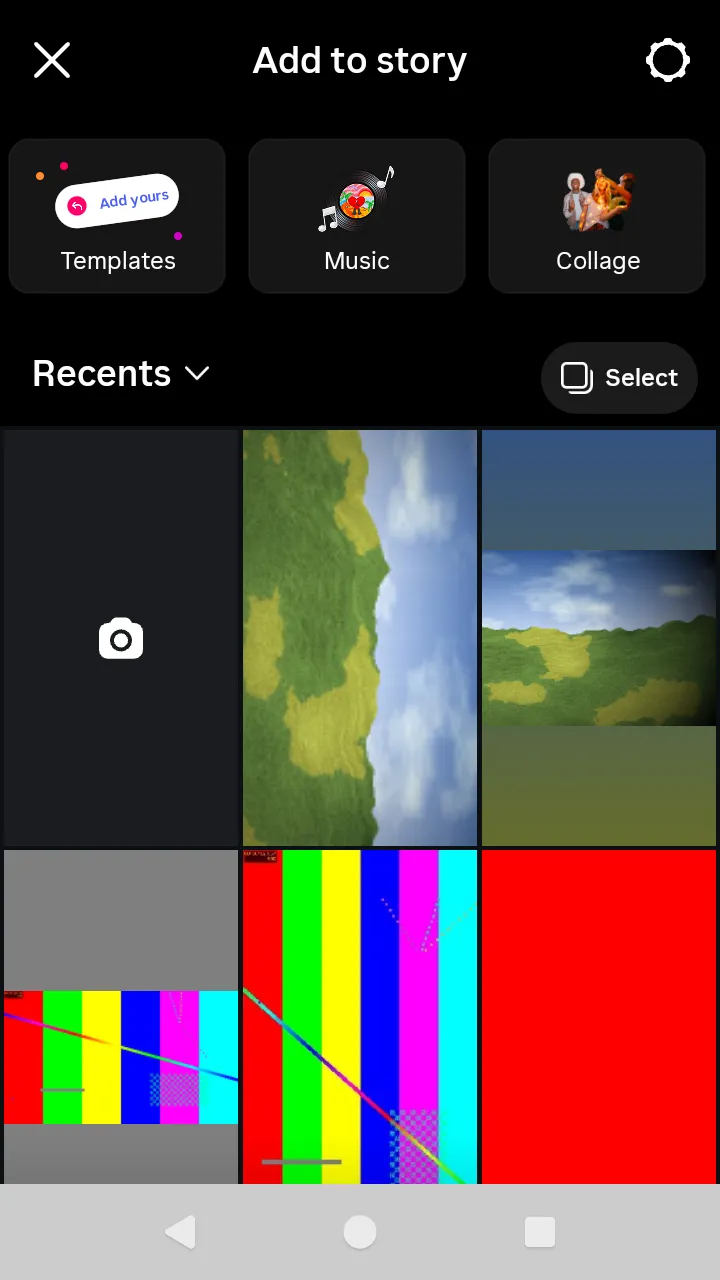 The story gallery:
 pickPhoto or pickVideo.
ts
// Publish a story photo with "Your story": the story camera, its gallery the photo, and the editor publishes at once.
const storyPhoto = await readFile('story.jpg');
const story = await AndroidIgpapi.launch({
checkpoint: saved,
screen: FeedTimelineScreen,
main: feed =>
Effect.gen(function* () {
const camera = yield* feed.openCreation('story');
const gallery = yield* camera.openGallery();
// What the device's media store says of the picked photo rides beside its bytes; a story reports both.
const editor = yield* gallery.pickPhoto({ file: storyPhoto }, { takenAt: 1_793_047_233, folder: 'Pictures' });
// "Your story" publishes at once: the caption's check, the upload, the flow closed, and the configure.
const published = yield* editor.shareToYourStory({ caption: 'Hello' });
return published.mediaId;
}),
});
console.log(story);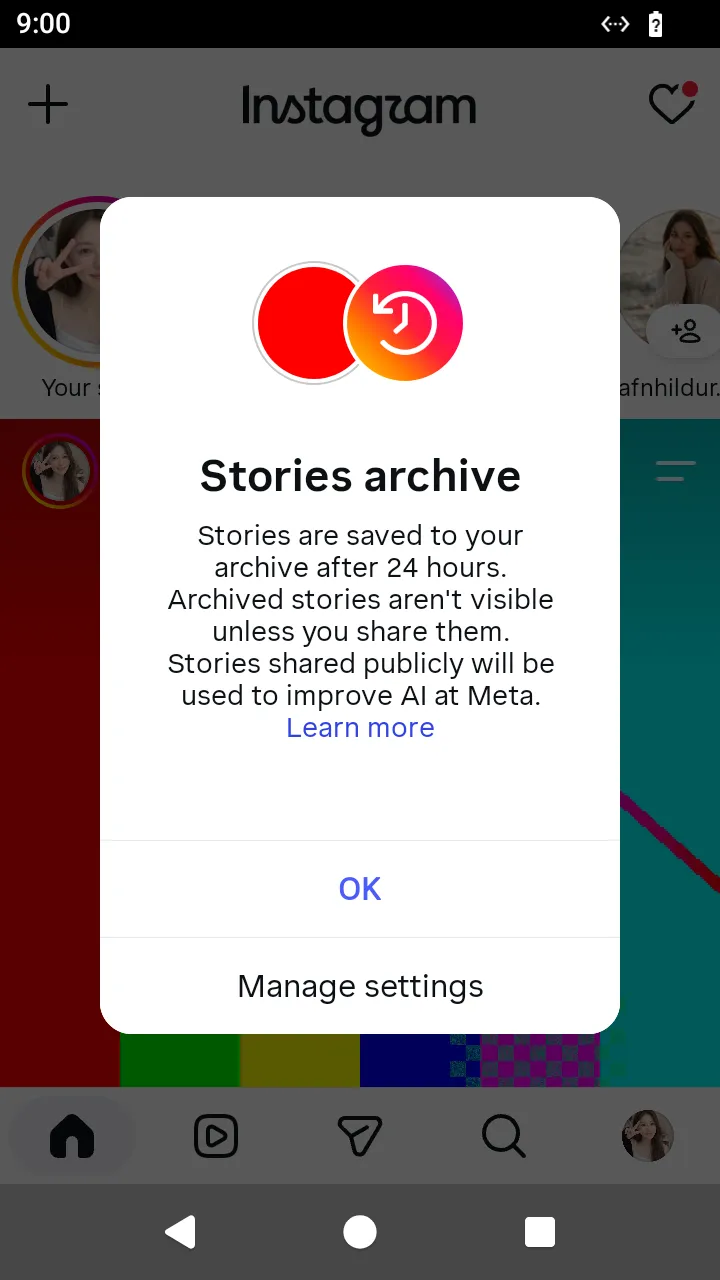 The stories-archive notice the app shows on the first story; your program does not answer it.
2. Publish a story video with "Your story"
Starts on: the feed.
The story mode's gallery lists videos too; pickVideo(video, where?) opens the story video editor, whose "Your story" button publishes at once: the caption's check, the upload settings, the encode their answer directs, the upload, the flow closed and the configure, and it answers the story once the server has made it. Pass the gallery's facts with the pick — when the video was taken and its folder (Movies by default). The gallery's pickVideo() answers either editor; this flow is the story video's.
ts
// Publish a story video with "Your story": the story camera's gallery, the video and the editor's "Your story".
const storyVideoBytes = await readFile('story.mp4');
const storyVideo = await AndroidIgpapi.launch({
  checkpoint: saved,
  screen: FeedTimelineScreen,
  main: feed =>
    Effect.gen(function* () {
      const camera = yield* feed.openCreation('story');
      const gallery = yield* camera.openGallery();
      // The story's video keeps the gallery folder and time the device's media store reports; a video has no music.
      const editor = yield* gallery.pickVideo({ file: storyVideoBytes }, { folder: 'Movies' });
      if (!PostingStoryVideoEditorScreen.is(editor)) return undefined;
      const published = yield* editor.shareToYourStory({ caption: 'A story' });
      return published.mediaId;
    }),
});
console.log(storyVideo);
3. Publish a story through the share sheet
Starts on: the feed.
The story camera's thumbnail opens the camera's gallery; the picked photo opens the story editor. The editor's next arrow, openShareSheet(options?), opens the Share sheet; its share() sends the caption's check and opens the "Also share to" sheet, whose entry uploads the photo and configures the story (data.published is the story the server created). Its done() closes the whole flow back to the feed and asks for the post-share banner.
ts
// Publish a story through the share sheet: the story camera, its gallery, the editor's next arrow, Share and Done.
const sheetPhoto = await readFile('story.jpg');
const sheetStory = await AndroidIgpapi.launch({
  checkpoint: saved,
  screen: FeedTimelineScreen,
  main: feed =>
    Effect.gen(function* () {
      const camera = yield* feed.openCreation('story');
      const gallery = yield* camera.openGallery();
      const editor = yield* gallery.pickPhoto({ file: sheetPhoto }, { folder: 'Pictures' });
      // The next arrow opens the Share sheet; Share publishes while the "Also share to" sheet is up.
      const sheet = yield* editor.openShareSheet({ caption: 'Worth a look' });
      const alsoShareTo = yield* sheet.share();
      const published = alsoShareTo.data.published;
      // Done closes the whole flow and asks for the post-share banner.
      yield* alsoShareTo.done();
      return published.mediaId;
    }),
});
console.log(sheetStory);
4. Publish a story with a song
Starts on: the feed.
A story with a song is the share sheet's walk with the music sticker set first: openStickerTray() opens the sticker tray, its Music sticker opens the music browser (openMusicBrowser()), openSearch() asks for the null state, typeQuery(text) sends the keyword suggestions of every prefix and the two result pages, submitQuery() the same pages as submitted, and pickTrack(song) opens the sticker editor whose done() hands the song back. openShareSheet({ music }) then publishes a story the server turns into a video of the song's length, so done() polls the story's status until it is complete before the banner. The song is what the search answered: a track without its asset id, cluster id, title or artist is refused where it is read.
ts
// Publish a story with a song: the sticker tray's music browser, a search, a picked song and the share sheet.
const musicPhoto = await readFile('story.jpg');
const musicStory = await AndroidIgpapi.launch({
  checkpoint: saved,
  screen: FeedTimelineScreen,
  main: feed =>
    Effect.gen(function* () {
      const camera = yield* feed.openCreation('story');
      const gallery = yield* camera.openGallery();
      const editor = yield* gallery.pickPhoto({ file: musicPhoto }, { folder: 'Pictures' });
      // The sticker button opens the tray; its Music sticker opens the music browser.
      const tray = yield* editor.openStickerTray();
      const browser = yield* tray.openMusicBrowser();
      const search = yield* browser.openSearch();
      const typed = yield* search.typeQuery('summer');
      const results = yield* typed.submitQuery();
      const songs = results.data.results.flatMap(result => (result.kind === 'track' ? [result] : []));
      const song = songs[0];
      if (song === undefined) return undefined;
      // Picking a song opens the sticker editor; Done hands the song back to the story.
      const stickerEditor = yield* results.pickTrack(song);
      const music = yield* stickerEditor.done();
      const sheet = yield* editor.openShareSheet({ music });
      const alsoShareTo = yield* sheet.share();
      const published = alsoShareTo.data.published;
      // A photo with a song becomes a video on the server: Done waits for it before the banner.
      yield* alsoShareTo.done();
      return published.mediaId;
    }),
});
console.log(musicStory);